
Install the extension without the Chrome Web Store
The extension is temporarily unavailable in the Chrome Web Store. You can still install it directly in Chrome: download the archive, unzip it and load it on the Extensions page. It takes about two minutes and works with any Google account.
Export your templates before you install
Already using the extension from the Chrome Web Store? Save your templates to a file first. To install this version you remove the old one, and Chrome may delete its data together with it.
- Open the template editor at gctemplates.app/editor.
- Click Export at the top right, next to Save all. A file named
gctemplates-YYYY-MM-DD.jsonis downloaded. - Keep the file. After installing, you will bring the templates back with Import (step 6).
Before you start
- Desktop Chrome, or another Chromium browser: Edge, Brave, Arc, Opera.
- Unzip the archive into a permanent folder, for example
Documents/gctemplates. Chrome loads the extension from this folder, so do not delete or move it.
-
Download and unzip
Click Download .zip above. Open the downloaded file and extract it. You should get a folder that contains
manifest.json. -
Open the Extensions page
Click the puzzle icon in the top-right corner of Chrome's toolbar and choose Manage extensions. Or paste
chrome://extensionsinto the address bar and press Enter.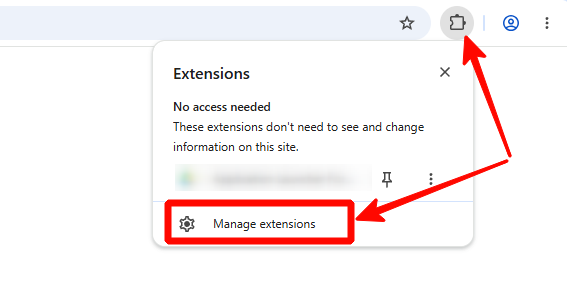
-
Turn on Developer mode
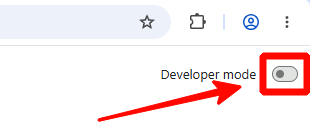
In the top-right corner of the Extensions page, switch on Developer mode. A row of new buttons will appear on the left.
-
Click “Load unpacked” and pick the folder
In the top-left corner of the Extensions page, click Load unpacked and select the folder you extracted in step 1, the one with
manifest.jsoninside. Select the folder itself, not the .zip file or a file inside it.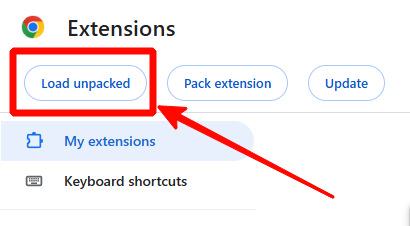
-
Open Google Calendar™
All set. Open Google Calendar™, create an event and you will see the Choose event template button.
-
Import your templates
If you exported your templates before installing, open the template editor, click Import at the top right and pick the
gctemplates-YYYY-MM-DD.jsonfile. The templates are added to the ones you see; nothing is replaced. A template whose name is already taken comes in with -imported at the end of its name.
Updating to a new version
Manually installed extensions do not update automatically. When a new version is out, download the new .zip and replace the contents of the same folder. Then open chrome://extensions and click the reload arrow on the extension's card. Your templates are kept.
Questions
I already have the extension from the Chrome Web Store
Export your templates first (see the warning at the top of this page). Then remove the old extension at chrome://extensions, load this version and import the file. Chrome keeps only one copy of the same extension, and the two would conflict.
Chrome says “Disable developer mode extensions”. What do I do?
Chrome may show this reminder for any extension that is not installed from the store. Close it with the × button. If you click “Disable”, turn the extension back on at chrome://extensions.
“Manifest file is missing or unreadable”
You selected the wrong folder. Open the extracted folder and check which level contains manifest.json. Select exactly that folder.
The extension disappeared after a restart
The folder was probably moved or deleted, for example from Downloads. Put it in a permanent location and load it again with Load unpacked.
Can I install it on a work computer?
Only if your administrator allows Developer mode. If the toggle is greyed out, it is blocked by your organization's policy.